
The professional guide
Your business on Paddoco, step by step.
Your profile, appointments and reports: follow the steps for your business, including clients who do not yet have a Paddoco account.
On your phone or computer. One account for your business and your own equestrian life.
Before you begin
- An email address you can access and your business contact details.
- Your SIREN (9 digits), SIRET (14 digits) or foreign business registration number, and an official business document. If you are exempt, you can explain why in your application.
- Your services and the qualifications requested for the people providing them. Required evidence depends on the services and the rules shown in the application.
- For your public profile: an introduction, the contact details you choose, a logo or cover image, your town or village and postcode or a business address, then your travel radius.
You can save an incomplete application and return to it later. You do not need to create a yard to get started.
Create your personal account
- Open Paddoco in your browser, or install the app on your phone.
- Choose Create an account and enter the requested information. Follow the instructions to confirm your email address if required.
- Sign in with that account. Use your own identity: you will enter your business name separately.
Already have a Paddoco account? Simply sign in: you will add your business to that account. Do not share your password with your team.
Declare your business
In the menu, open My account, then Professional space. On a phone, open More to find My account. Select Declare my business.
Enter your business name, registration number, a short introduction, town or city, country and the services you offer. Save the activity: it stays in preparation.
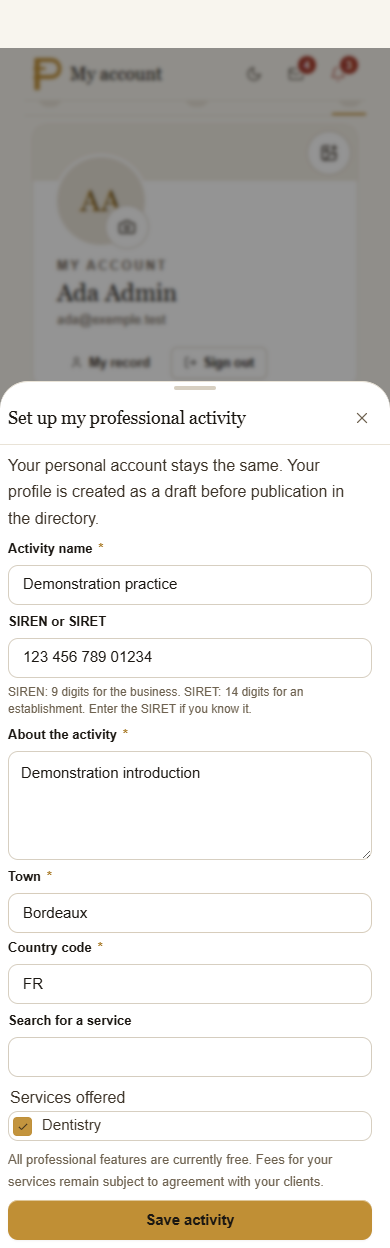
In Business, complete the legal name, business structure, your role, registration status, administrative address and application contact details. Use Name, registration and services to update the initial information.
In Supporting documents, add the business document. In Qualifications, provide the evidence requested for each practitioner. A service exempt from qualification checks does not require the same application as a regulated service: follow the guidance in your application.
These administrative details are used to review your application. You choose your public address and contact details separately on your listing.
You need to be signed in to use this link. If the sign-in screen appears, sign in, then open My account and Professional space.
Submit your application for review
Open Review and send, then Send my application. You can submit an incomplete application for review; malformed information and permissions are still checked. Read the receipt date and status.
- Application under review
- Your application has been sent. Track its status in your professional space. This guide does not promise a review deadline.
- More information requested
- Read the message, complete the application and submit it again. If it is declined, also read the stated reason.
- Business accepted
- My business becomes available in the menu, below My yards. You can now prepare your listing for publication.
Business approval, the practitioner’s qualification or applicable individual authorisation, and agreement to work with the horse are distinct. A specific administrative authorisation is not a verified diploma; an approved business does not automatically gain access to horses.
Prepare and publish your listing
In My business, choose your business, then Customise the listing. Add a clear introduction, your services and the contact details clients can use. Logo and cover lets you give the listing your own identity.
Services, prices and practices
Present your services and prices: fixed price, from or quotation, with the available unit and currency. Selecting a service prepares a request; it is neither an accepted quotation nor a payment. Shiatsu and naturopathy are separate practices which can be combined if they match your business; declaring them does not create a medical qualification.
Your public location and travel area
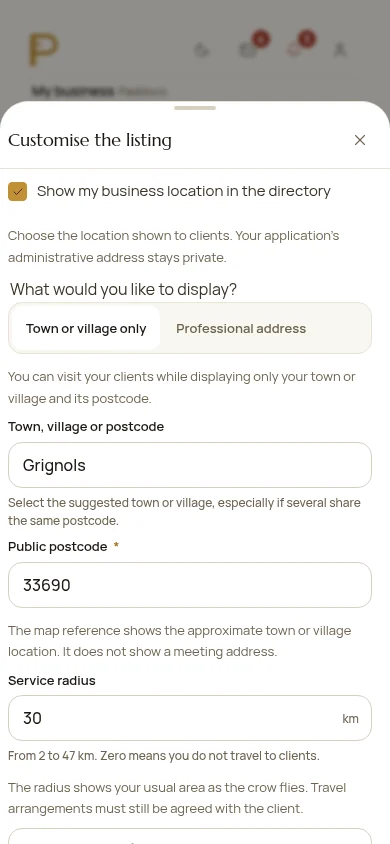
- In My activity, My business, open Location and travel. Choose Town or village only if you work from home or prefer not to display a street address.
- In Pro directory, All shows results without a selected radius. Near me uses your position with your permission; then choose an offered radius. The choice is remembered for your account on this device, without storing your coordinates in that preference. On the map, open a cluster and then a profile. A town alone is an approximate marker, without directions to a personal address. A profile without coordinates can remain in the list; it has neither marker nor distance. Other filters still apply.
- Enter your travel radius. Where a point is available, the radius is measured in a straight line: confirm travel arrangements with the client. If you receive clients on site and want to display the exact address, choose Professional address and check the point.
- Save, check the preview, then publish the listing when everything is ready. A listing saved as a draft is not yet visible in the directory.
An already published profile can be edited in the same place. Switching to Town or village only and saving removes the street and the old precise point from the public location. Your administrative address stays separate in the private application.
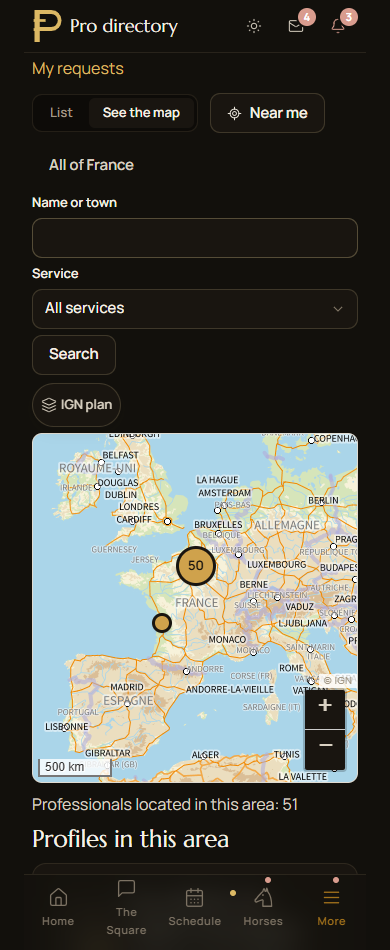
To check the result, open Pro directory and search for your business. Clients sign in to browse the directory; this guide can be shared with anyone without an account.
Handle your first request
A client finds your listing and selects Request a service. In My business, open Requests to read the request, the horses involved and the available permissions.
Use the available actions to respond and arrange the appointment. Check the date, time, location and selected horses, then find the visit in Calendar. The client follows it in My requests.
Agreement on the price and the payer’s identity do not replace owner agreement. Check that the agreement covers the service, horses and the entire visit, up to its end time. An invitation or accepted request does not expand clinical access.
After the visit, record the work and reports you are authorised to add, then attach any useful documents. Access depends on your role, qualifications and the owner’s consent.
For notifications, open My account, then What I am told about. Check your preferences and your phone or browser permissions. You can always find requests and appointments in the app, even if a device alert does not arrive.
After the visit
File the report and its documents
After the visit, check the horse and intervention before adding a report or document. The care record links visits, reports and original files. Review an imported document before linking it; importing does not grant extra access to the horse.
Withdrawing access does not destroy previously recorded history. To find a document, use filters and open the relevant visit rather than importing another copy.
Clients, reports and archives
A report suited to your profession
Dentistry, farriery, osteopathy, saddle fitting and bit fitting have dedicated reports. Start with a useful summary; detailed sections and diagrams are optional according to the profession. The latest findings you are allowed to view appear on the horse profile with their date and source. In the care menu, diagram sections appear only when an authorised anatomical finding has been recorded; text reports remain in the shared history.
Supported native and external reports offer a photo and video preview followed by a paginated gallery. Open media deliberately to enlarge or play it. Attachments retain the report's permissions; check what an export includes before sharing it. An unfilled diagram is neither an examination nor a diagnosis.
Foot and dental diagrams can offer an optional 3D view with rotation and zoom; the 2D view remains available. This reference anatomy does not reconstruct each horse’s clinical measurements. Saddle and bridle assessments remain organised by equipment and configuration without combining their findings.
Clients without a Paddoco account
- In your business Clients records, create an external client, their contact details and the relevant horses. These records stay private to your business.
- An authorised practitioner can draft, finalise and correct the report. Exporting text or HTML also allows printing to PDF; the documents carry the Paddoco signature.
- If the client joins Paddoco, propose linking the records to their account. They accept the selected archives and choose, for each source, archives only or a match with a horse they currently own.
Linking preserves reports, their corrections and provenance; your internal notes are not transferred. A new external horse is not linked automatically. Reception staff can manage client records within their permissions without gaining access to clinical content.
Sending reports by email is currently suspended. Use the available exports and pass them on yourself if needed. A sending status is never proof that the recipient has read the report.
Answers to your first questions
Is it free?
Paddoco’s professional features are currently free. You agree the price of your services with your clients. The current free access is not a promise that all features will remain free forever.
Do I need to join or create a yard?
No. Your professional business is independent of yards. You do not need to create a yard to be listed. If you already have a personal account, keep using it.
Why can’t I see My business?
This menu entry appears for teams whose business has been accepted. Before acceptance, find your application in My account, then Professional space. Saving an application does not submit it for review.
My business has been accepted, but I cannot find my listing.
In Pro directory, All shows results without a selected radius. Near me uses your position with your permission; then choose an offered radius. The choice is remembered for your account on this device, without storing your coordinates in that preference. On the map, open a cluster and then a profile. A town alone is an approximate marker, without directions to a personal address. A profile without coordinates can remain in the list; it has neither marker nor distance. Other filters still apply.
Can I remove the address from my existing profile?
Yes. In My activity, My business, Location and travel, choose Town or village only, then save the town and postcode. The street and the old precise point are removed from the public location; the administrative address remains private.
Does my client need an account before a visit?
No. You can keep an external client and their horses in your private business records. Linking to an account later requires the client’s acceptance; archives and the horse match are chosen explicitly.
Can I add a receptionist or colleague?
Yes, from Team. Each person uses their own account and accepts their invitation. Grant only the permissions they need: managing the listing, arranging appointments or carrying out visits. Reception staff do not receive clinical permissions; each practitioner retains their own qualifications and horse access permissions.
Can I also use Paddoco for my own horses?
Yes, with the same account. My business is for your team’s work. In Pro directory, My requests is for services you request for yourself. Your horses, hacks and personal equestrian activities remain available.
Does Paddoco take payments for my services or issue prescriptions?
This workflow helps you get listed, coordinate appointments and keep authorised reports and documents together. It does not replace your invoicing or prescription software. Agree payment arrangements directly with your clients.
Need a hand?
Tell us your business name, the step where you got stuck and the message displayed. A screenshot can help; hide confidential information. Never send your password.
Contact PaddocoGet started on PaddocoThis guide is public: copy the page address to send it to a colleague or an equine professional you know.