
The training centre guide
Training with Paddoco, from the centre to the host yard.
The centre runs its cohorts, the apprentice keeps their learning record, and the tutor supports them during their period at the yard. One link or one QR code is enough for everyone to land in the right place.
On phone or computer. One account for training and for life as a rider.
Four roles, one learning record
- I run a centreApprenticeship centre, affiliated training unit or recognised institution: open the workspace, describe your programmes, invite your team and your apprentices.
- I am an apprentice or traineeJoin my cohort through the link I received, keep my learning record and choose what I share.
- I am a tutor or apprenticeship masterAccept an apprentice’s placement at my yard and follow their period with me.
- I teach at a centreJoin the team and follow the learners assigned to me.
Joining a centre does not make you a member of any yard and opens access to no horse. Everyone’s horses, yard and messages stay private.
Opening and running your centre
From creating the account to the first cohort, allow half an hour, plus the time the platform takes to check your recognition.
Create the account and the institution’s yard
- Create your personal account, in your own name.
- In More, open My yards and choose Found a yard, in your institution’s name.
- Tick This institution is an apprenticeship centre, affiliated training unit or centre recognised within an official training framework. Once the yard is created, you land on your application.
Your yard already exists? Open its settings: the Training centre section lets you apply at any time.
Submit the recognition application
Enter the institution’s name, its type (apprenticeship centre, affiliated training unit or other institution), the country, the time zone, the responsible organisation, the recognising authority, the official reference, and add a supporting document. For an affiliated training unit, give the apprenticeship centre it belongs to. You can save a draft, come back to it, then submit the application.
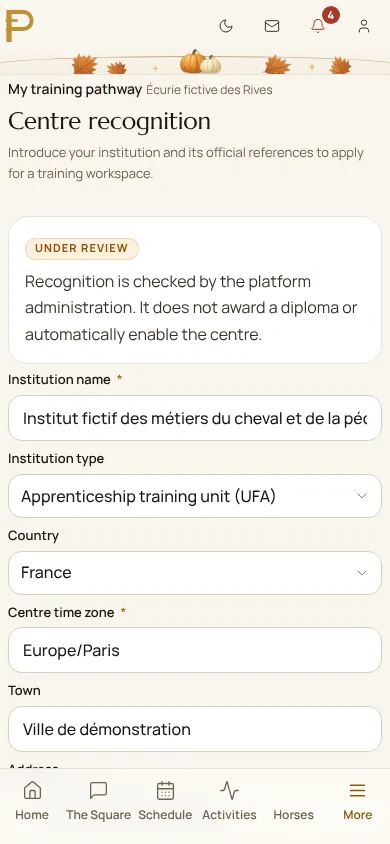
Supporting documents stay private: only your managers and the platform’s review team can see them. They never appear on your public profile.
Enable the workspace and follow the overview
- Under review
- The platform is checking your recognition. You are notified as soon as it decides.
- Further information requested
- Read the note in the application, complete it and submit it again.
- Recognition approved
- In Application and settings, choose Enable workspace. Publishing the centre’s profile is a separate choice.
The centre’s overview then tells you where you stand and what is left to do, with a button for the next step.
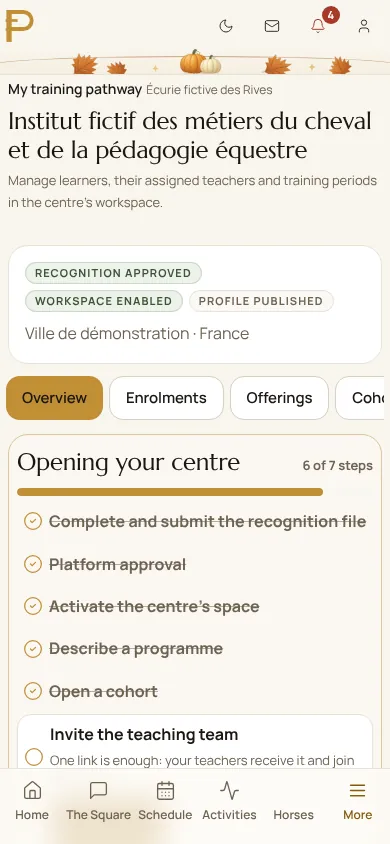
Approval recognises your institution. It does not make Paddoco an awarding body: your diplomas remain those of your awarding body.
Describe your programmes and open your cohorts
A programme describes a course: title, objectives, prerequisites, delivery, accessibility, qualification reference and awarding body. It can stay private. A cohort brings together the apprentices of one intake, with its start and end dates. Once your centre is verified and published, each published programme appears on your yard’s page, and the directory marks your yard “Trains apprentices”: future apprentices find it with that filter.
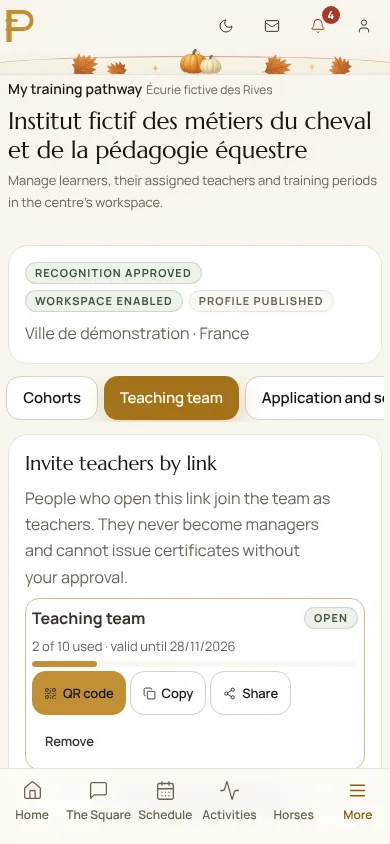
Invite the teaching team by link
In Teaching team, create a link and send it to your teachers. By opening it, they join the team as teachers. Nobody becomes a manager or issues certificates through a link: those rights are given by name.
Invite your apprentices: one link, one QR code
- In Enrolments, choose Create an invitation link.
- Choose the cohort, how long the link lasts (7, 30 or 90 days) and the maximum number of people, up to 500.
- Copy the link into an email, share it, or show its QR code full size to project it in class.
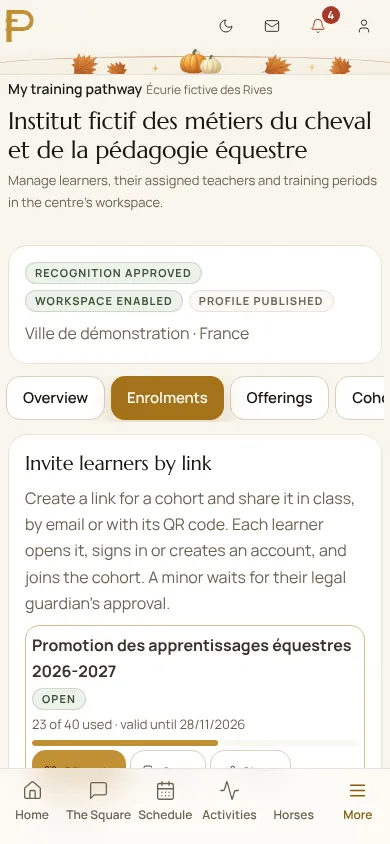
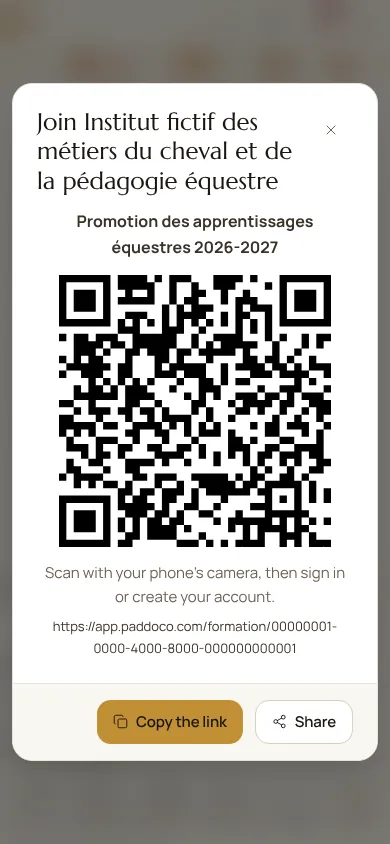
Demonstration screenshot from 29 October 2026, with fictional data. Tap the image to enlarge it.
Everyone scans, signs in or creates an account, and joins the cohort. The counter shows how many people have used the link; Remove closes it at once.
Organise each apprentice’s follow-up
In Enrolments, open an apprentice’s follow-up to assign a lead teacher, with dates. For a period at a yard or a company, choose Invite the tutor by link: enter the host location and the dates, then send the link to the apprenticeship master. It works only once.
The host yard does not need to be a centre, or even be on Paddoco. The tutor gets no rights over the horses or the life of the yard, only the follow-up of their apprentice during the period.
Follow, assess, certify
Apprentices record their activities and share what they choose with their teachers and their tutor. The team adds observations and publishes reviews. Authorised managers issue internal certificates and record the qualifications actually obtained. At the end of the programme, close the enrolment: the history is kept and the apprentice keeps their certificates.
Joining your cohort and keeping your learning record
Your centre gives you a link or a QR code. The rest takes two minutes.
Open the link and join
- Scan the code with your phone’s camera, or tap the link you received.
- If you do not have an account yet, create one: you then come back automatically to your cohort’s page.
- Check the centre, the cohort and its dates, then choose Join the cohort.
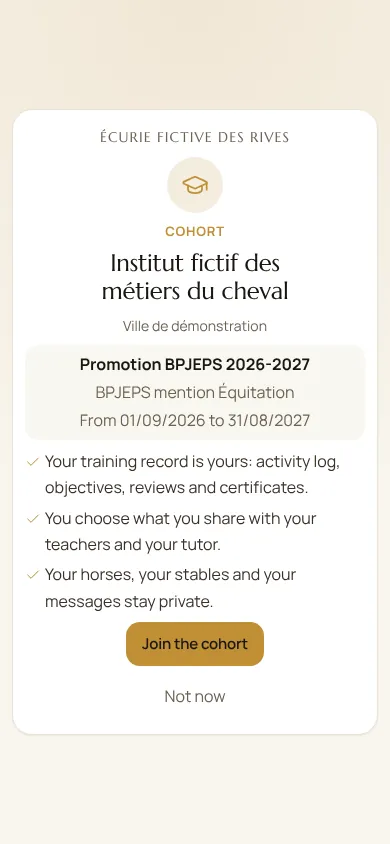
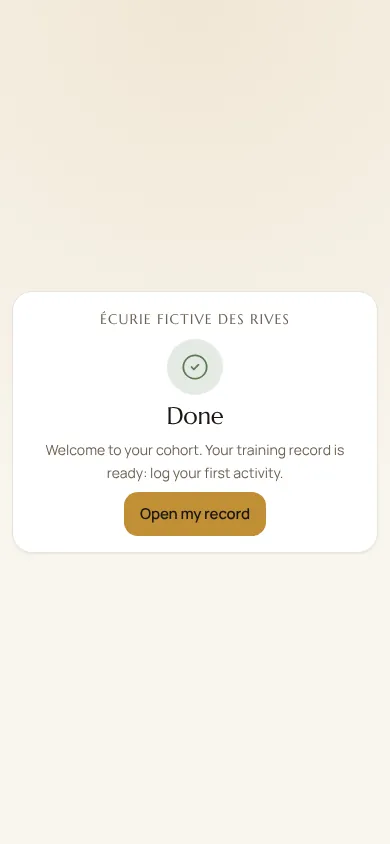
Demonstration screenshot from 29 October 2026, with fictional data. Tap the image to enlarge it.
From the educational autonomy threshold, currently fifteen years of age, learners accept their own invitation and use their learning record without prior parental confirmation. Below this threshold, confirmation by the legal guardian is still required. A parent can be linked later through verified guardianship; this grants no yard role or access to a horse.
Record your activities
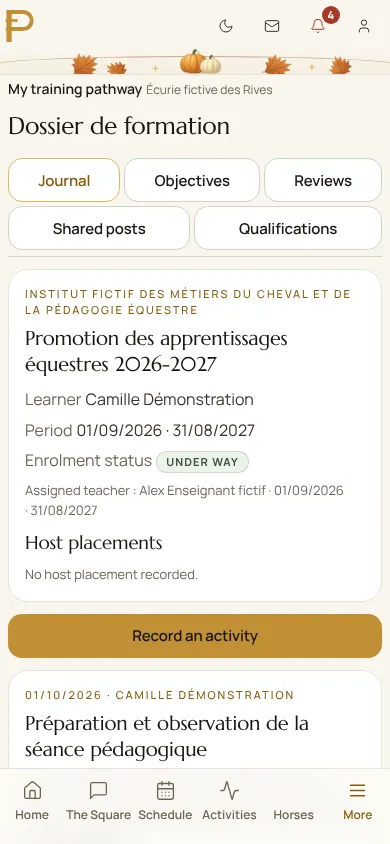
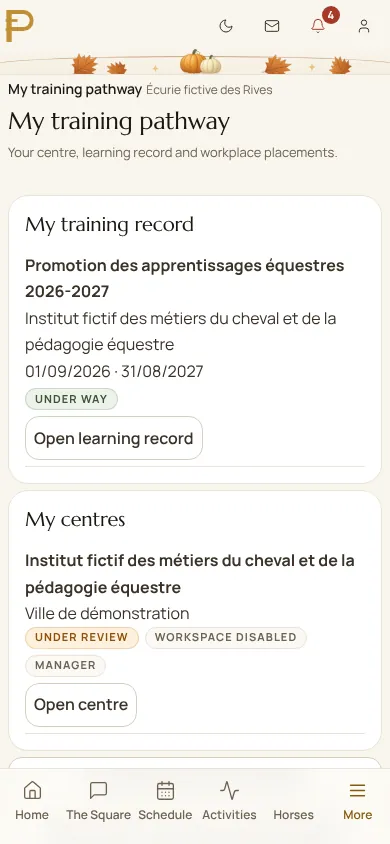
In More, open My training pathway, then Open learning record. Choose Record an activity: the date, the duration, what you did and, if needed, a supporting document. Follow your objectives (planned, in progress, achieved) and read your reviews.
Share what you choose
For each item, choose who sees it, your lead teacher or your tutor, and until when. A preview shows exactly what will be shared. You can withdraw a share at any time.
Keep your diplomas and certificates
Your certificates and qualifications are kept in My account, under My diplomas and certificates. You decide whether to show them on your rider profile. They stay yours after the programme.
Hosting an apprentice at your yard
The centre sends you a placement link. It names the apprentice, the place and the dates of the period.
- Open the link, sign in or create your account.
- Check who you are hosting, where and when, then choose Accept the placement. The link works only once: if it has already been used, ask the centre for a new one.
- The apprentice’s record appears in My training pathway, under The learners I follow. There you read what they choose to share with you and add dated observations.
- At the end of the period, your access closes by itself. Your observations stay in the apprentice’s history.
Accepting a placement gives the centre no rights over your yard, your horses, your clients or your messages.
Teaching at a centre
- Open the team link sent by the manager, sign in and choose Join the team. The centre appears under My centres.
- The centre assigns you as lead teacher, with dates. During the assignment, you read what the learner shares, add observations, and prepare then publish their reviews.
- The right to issue an internal certificate is given by name by a manager. It never comes from a link.
Answers to your first questions
The link says it has expired or is full.
The centre set a duration and a number of places. Ask it for a new link: it takes a few seconds to create from Enrolments.
A link has been passed around outside the class.
The manager chooses Remove: the link no longer leads anywhere. People already enrolled stay, and an enrolment can be withdrawn from the apprentice’s follow-up.
Can the centre see my horses or my messages?
No. The centre, the teachers and the tutor only see what you share in your learning record, during their period. The platform does not read activity logs.
I am under 18: how do I enrol?
Open the link with your account. Your enrolment waits for your legal guardian’s approval, which they confirm from their own account.
Does Paddoco award diplomas?
No. Approval recognises the institution. Internal certificates are the centre’s; diplomas remain those of the awarding body, recorded with their reference.
Does the host yard need to be on Paddoco?
No. The centre enters the host location by name. Only the tutor needs an account to follow the apprentice.
What happens to the record after the programme?
It stays with the apprentice, with their certificates and qualifications. The centre closes the enrolment; nobody follows it any more, and the history is kept.
Need a hand?
Give the name of your centre, the step where you got stuck and the message shown. Never send your password.
Contact PaddocoGet started on PaddocoThis guide is public: copy the address of this page, or of one part (#centre, #apprenti, #tuteur, #enseignant), to send it to your team, your apprentices or their tutors.