
The equestrian tourism guide
Trails to explore. Places to stop along the way.
Plan your next adventure on horseback, or inspire riders to stop at your place. One account, two ways to explore Tourism.
See what it could look like
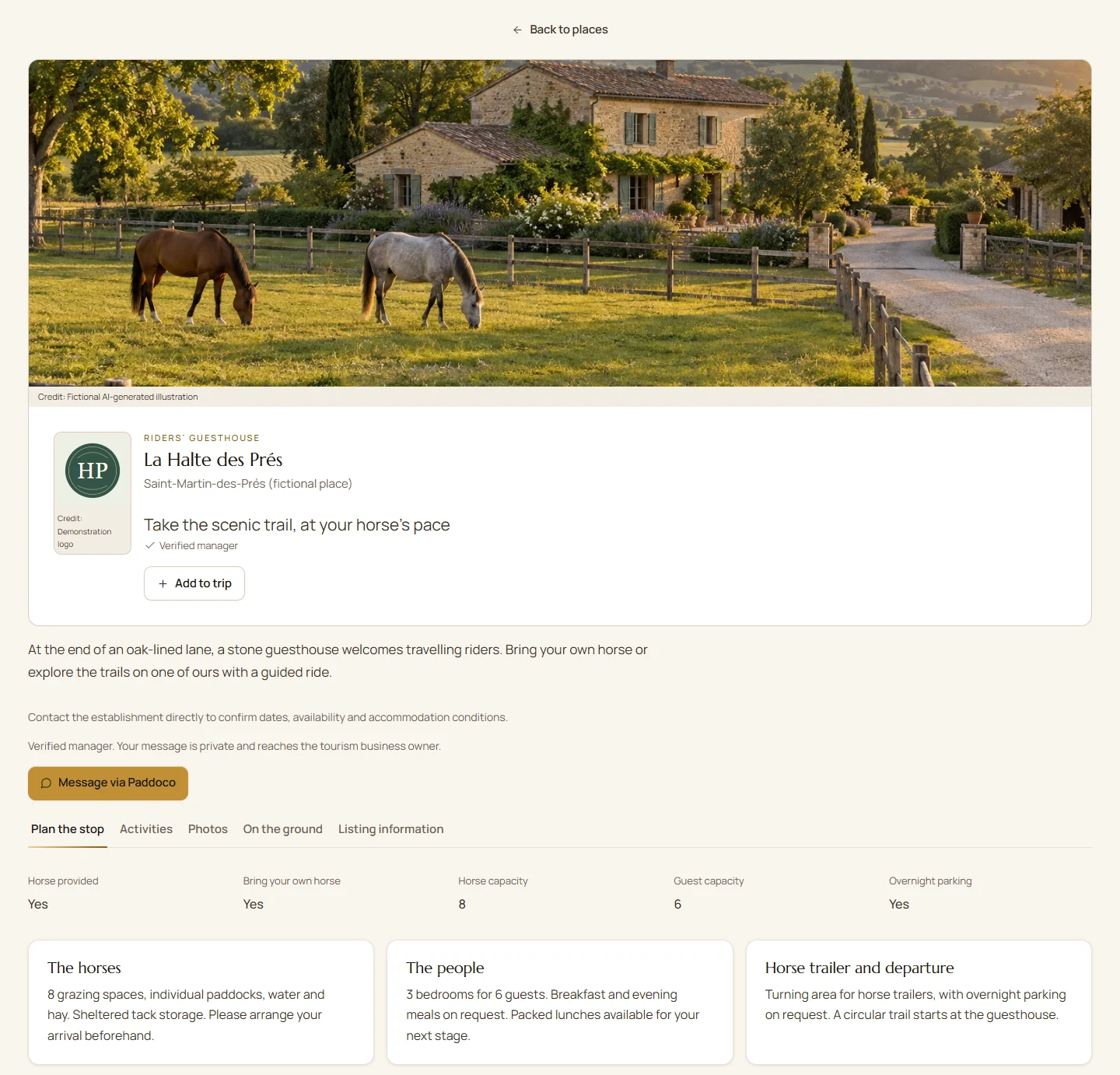
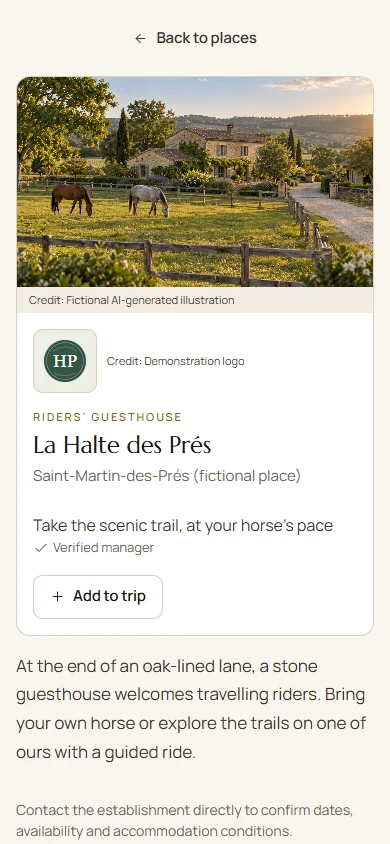
Welcome to La Halte des Prés.
An invented guesthouse, an AI-generated photo, a demonstration logo and fictional details. These are real Paddoco screens; this place has not been added to the catalogue and cannot be contacted.
Explore the way you ride
In the Tourism menu, explore the map or list of places: guesthouses, horse accommodation, guided rides and parking. You can plan a trip without belonging to a yard, bringing your own horse or looking for an activity that provides one.
Open a marker to view its listing. Plan your stopover brings together details for horses, people and trailers. Also check Activities, Photos and On the ground. Information awaiting confirmation does not guarantee availability.
On a computer, use the mouse wheel to zoom the map. On a phone, pinch to zoom. Filters help you find the places that suit your route.
Build a trip around your days
- Create your trip in My trips. Add your destination, people, horses and dates if you already know them.
- Use Add to trip to include places. Organise your days, stopovers and route sections; include rest or transport days too.
- Draw your route, import a GPX file or reuse an accessible ride. Open a route on the map to inspect it before reusing it. Save your plan.
- Use Share trip to invite your companions and choose their permissions. The shared plan stays separate from each person’s recorded rides.
A plotted route helps you plan; it does not certify that a path is open or suitable for horses. Check recent observations and confirm conditions with the places before setting off.
Follow your trip, one section at a time
In Trip rides, find each day and its route sections. Navigate this leg opens the departure flow; Resume this ride returns to an ongoing recording and View completed ride opens its record. Save changes to your plan before preparing a new departure.
Journey outings use Hacks: routes, photos, markers and memories appear in the outing screens. A completed hack can produce a photo or MP4 memory with the available backgrounds, including a topographic background. An accessible route can form the basis of a new trip; community observations remain information to check on the ground.
Prepare offline maps and records before losing connectivity and wait for download confirmation. Offline does not mean every service works: messages, updates and alert transmission may need the network. In My journeys, completing or archiving a record does not create a recorded outing.
Navigate, then relive the trip
Under Trip outings, choose Navigate this leg. Follow this leg opens the route without creating an outing. On your phone, Record this leg creates your outing in Rides and opens the same navigation tool. When you return, you can open the next leg: each recording stays separate.
Already recorded an outing? Link a completed outing lets you choose your existing outing, with its track, photos and horses. You can then find the trip from its Rides page.
The journal brings together your completed outings, an album, routes travelled, waypoints and problems encountered. Horses come from the participation records completed after each outing: open Riders and horses to complete the session. Horse tracking still counts each outing only once.
Add a memory or expense and link it to a day, stop or outing. The summary uses recorded distances; your planned budget stays under Preparation. Actual expenses remain separated by currency.
Export the journal prepares an archive containing a story you can open in a browser. Select your notes, expenses, photos, horses, problems, waypoints and GPX tracks, then use Share or download. Videos stay in the app. The journal is personal: sharing the plan does not reveal your companions’ expenses or memories.
Share a public trip, then make it your own
In your trip, open Sharing, then Public publication. This section prepares an edition that anyone can view, even without an account. Companion invitations remain in the same tab.
Choose your title, author name and introduction. Select the days, tracks and stops to show, then the memories, expenses and photos you want to share. Check public preview shows exactly what is included before you approve and publish.
Trip dates, contacts, bookings, companions and private horse data are excluded automatically. Also review selected texts, captions, addresses and tracks: they may reveal a private location or personal information. Only your photos from completed rides with suitable image consent are offered.
Changes to your private trip do not automatically update the publication. Prepare a new preview to update it. Withdraw publication closes the public link and prevents new copies; a copy already created or downloaded cannot be erased from its recipient’s device.
In Public trips, open a story and select Create my trip from this one. Keep the days, tracks and stops you want, name your trip and optionally choose a new starting date. Signing in returns you to the right trip.
Your new trip is private, independent and linked to its source for attribution. Days are renumbered, accommodation providers must be contacted again and access must be checked. Edit anything, then use Rides navigation for each leg. The author’s photos, expenses, rides and horse records never become yours: your logbook will start with your own adventure.
Ask the right questions before setting off
When a place is linked to a verified manager, Message via Paddoco opens a private conversation after sign-in. You do not need to belong to their yard. If this contact option is not available yet, use the contact details shown on the listing.
Include your dates, the number of riders and horses, riding experience, accommodation needs and whether you are bringing a trailer. Ask for confirmation of availability and conditions.
Today, Tourism is for planning and making contact. Booking and paying for your stay are not part of this flow.
Start by looking for your listing
- Search for your establishment on the map and in the list before creating a place. Some listings have been prepared from public sources.
- Does the listing already exist? Open it and choose I manage this place. Provide your business details and evidence of your connection to the establishment. The team reviews your request before giving you management access.
- No listing yet? Use List a place and enter the services you actually offer. Select an address suggestion, then check the marker: its position on the map remains the reference for the location.
- Already a yard administrator? Use the yard listing flow, then Prefill my tourism listing. Check the copied details and complete the missing visitor information.
A yard is not automatically a tourism business. The two activities remain separate and can be linked to the same account. Claiming a listing keeps its location, sources and links to trips.
Let visitors discover your place before arrival
Once you have permission to manage the listing, open Customise my showcase. Upload images to the gallery, choose your cover photo and logo, then write a short tagline that inspires a visit.
Show what helps visitors choose: scenery, bedrooms, paddocks, tack storage and trailer access. Add the required credit and usage permission for each photo. Use images you have permission to publish.
Preview shows the result before you save your showcase. Photos are saved separately from your tagline and image choices. If you leave with unsaved text, the screen lets you keep it.
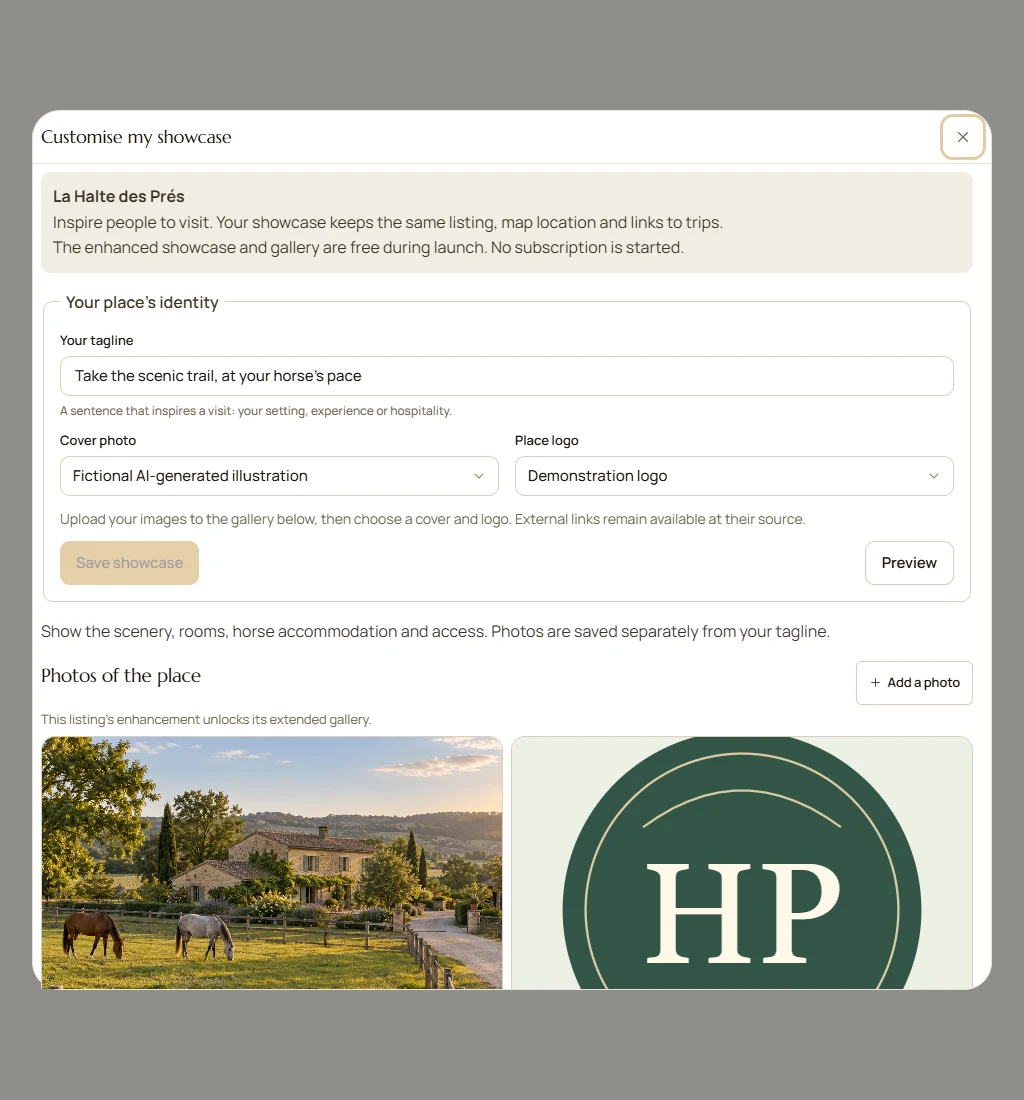
The enhanced showcase and gallery are free during launch. No subscription is started. Enhanced presentation plans, individual or funded by a local area, may be offered later; prices have not yet been announced.
Before heading out
Check location permissions and the sharing chosen for your participation before departure. Being a manager, administrator or travelling companion does not grant general access to other people’s private position. A fall alert remains an uncertain signal and depends on the network; no public emergency service is called automatically.
See the steps for a hackFrequently asked questions
Does sharing a journey open my expenses and positions?
No, sharing the programme does not share the whole personal record. Invitations, position during an outing, the exported journal and internet publication are separate choices. Review the recipients and preview for each share.
Can I share a journey film without publishing the whole record?
Yes. From a completed outing, prepare its memory with the selected photos and information. Downloading or sharing the MP4 does not publish the whole journey. On La Place, choose the audience and then confirm publication. Check the start, finish and captions in particular.
My place is already listed: should I create another listing?
No. Request management of the existing listing. If you find two listings for the same place, let Paddoco know so the situation can be checked.
Does a verified manager mean an accredited establishment?
No. This status confirms the manager’s connection to the place. It does not guarantee accreditation, availability or the conditions of a stay.
Who can see Administer tourism?
General tourism administration is restricted to Paddoco super administrators. Authorised managers have tools for their own places; being a yard administrator does not grant these general permissions.
Can I suggest a correction without managing the place?
Yes. Suggest a correction on the listing, or add an observation for information from the ground. Catalogue details and observations are separate; making a suggestion does not give you ownership of the place.
Need a hand?
Tell us the name of the place or trip and where you are stuck. To claim a listing, explain your connection to the establishment.
Contact PaddocoOpen Tourism